Table of Contents
Introduction
Setting up IPTV on your smart TV has never been easier. Whether you own a Samsung, LG, Sony, or any Android-powered television, this comprehensive guide will walk you through every step of the process. With over 100,000+ international channels and on-demand content at your fingertips, you'll unlock a world of entertainment possibilities.
By following this guide, you'll be streaming within minutes, enjoying crystal-clear HD, FHD, and 4K content on the biggest screen in your home. We've tested these methods extensively and optimized them for maximum performance and reliability.
Prerequisites & Requirements
Before we dive into the setup process, ensure you have the following in place:
- Smart TV with Android or LG WebOS/Samsung Tizen – Ensures full compatibility with IPTV applications
- Reliable High-Speed Internet Connection – Minimum 15 Mbps for FHD, 25 Mbps for 4K streaming
- 2.4GHz or 5GHz WiFi Router – 5GHz recommended for better stability and speed
- Greatest IPTV Subscription – Credentials (username and password) from your account
- Remote Control or Mobile App – For navigation and control during setup
- 30 Minutes of Uninterrupted Time – To complete installation and testing
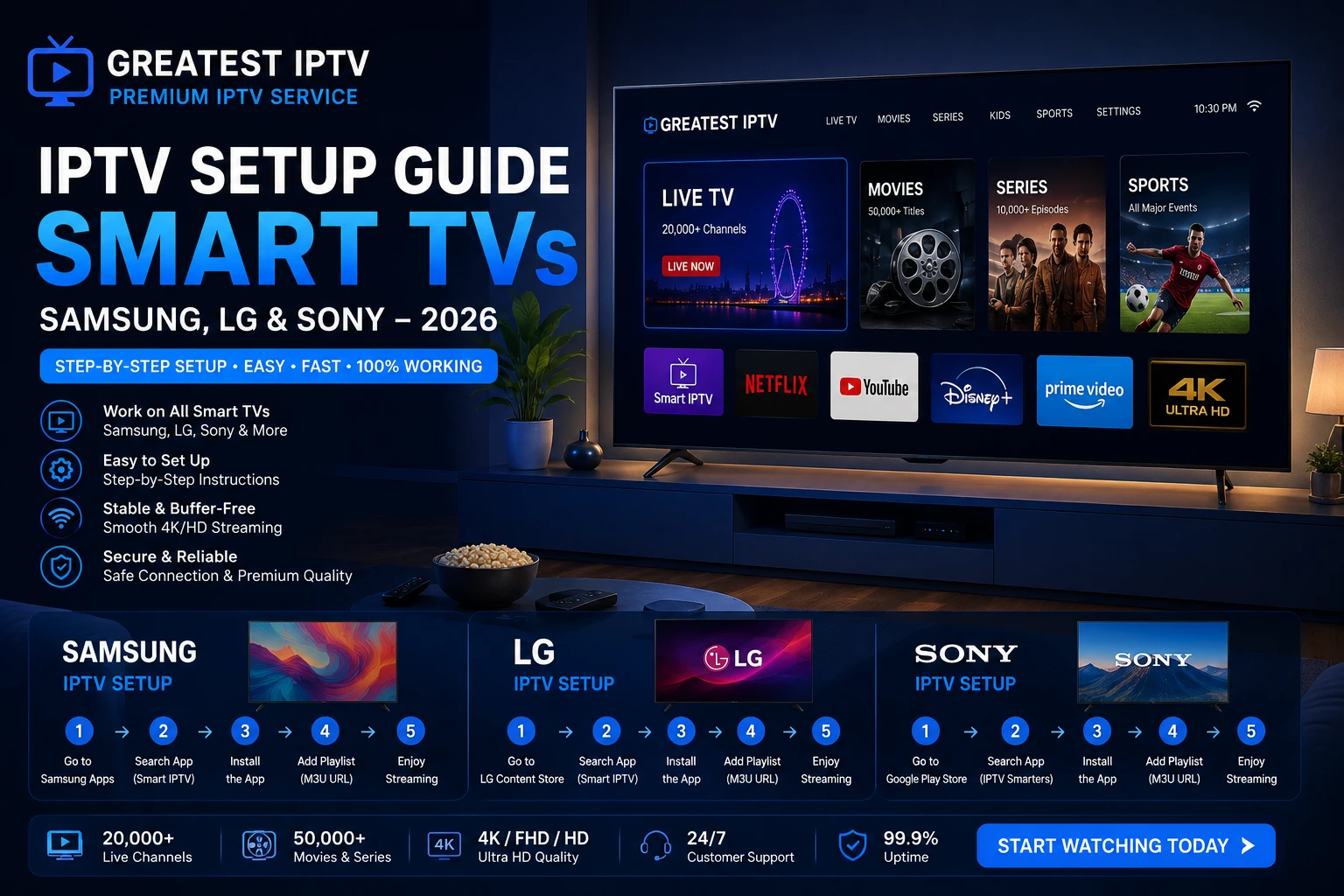
Samsung Smart TV Setup
Samsung TVs run Tizen OS, which provides excellent app compatibility. Here's your step-by-step installation guide:
Step 1: Connect to WiFi
First, ensure your Samsung TV is connected to your home WiFi network. Press the remote's home button, navigate to Settings, select Network, and choose your WiFi network. Enter your password and wait for the connection to establish.
Step 2: Access the Samsung App Store
Press the home button, then navigate to "Apps". At the bottom of the screen, select "Samsung Apps" or "App Store". This opens the official Samsung application store where you can download IPTV streaming applications.
Step 3: Download IPTV Applications
Search for popular IPTV applications like Smarters Pro, IPTV Smarters, Kodi, or VLC. These applications are lightweight, optimized for Samsung TVs, and provide superior streaming quality. Download the application that suits your preferences.
Step 4: Launch and Configure
Open the installed application. You'll see a login or configuration screen. Enter your Greatest IPTV credentials (username and password). Some apps require M3U playlist URLs or Xtream codes – contact our support team to receive these credentials formatted for your chosen application.
Step 5: Test Your Stream
After configuration, select a channel and verify playback. Audio and video should start within 3-5 seconds. Adjust picture settings through your TV's native menu for optimal quality.
Ready to Stream on Your Samsung TV?
Get instant access to 100,000+ channels with Greatest IPTV. Our setup support team is available 24/7 to assist you.
LG Smart TV Setup
LG Smart TVs use WebOS, which features an intuitive interface and wide app selection. Follow these steps for seamless IPTV setup:
Step 1: Verify WebOS Version
LG TVs running WebOS 3.0 and above have excellent IPTV support. To check your version, press Settings > General > About This TV. Note your WebOS version for reference.
Step 2: Connect to Network
Navigate to Settings > Network > WiFi Connection. Select your home WiFi and enter the password. Wait for the connection status to show "Connected".
Step 3: Access the LG Content Store
Press the Home button on your remote, then select "LG Content Store". This application store features a curated selection of apps optimized for LG WebOS TVs.
Step 4: Download Compatible Apps
Search for Smarters Pro, IPTV Smarters, or Kodi. These applications are known for stable performance on LG WebOS. Download and install your preferred application.
Step 5: Input Your Credentials
Launch the installed app and enter your Greatest IPTV account details. LG WebOS apps typically support both M3U playlists and Xtream API configurations. Paste your provided URL or credentials into the configuration screen.
Step 6: Optimize Picture and Sound
After successful connection, navigate to Picture Settings (Picture Mode: Cinema, Energy Saving: Off) and Sound Settings (Surround: On, Volume: 50%). These settings provide the best viewing experience.
Sony Smart TV Setup
Sony Bravia TVs use Android TV, offering exceptional app diversity and seamless Google integration. Here's how to set up IPTV:
Step 1: Connect to WiFi Network
Press Home, go to Settings > Network & Internet > WiFi. Select your WiFi network and enter your password. Confirm successful connection.
Step 2: Enable Developer Options (Optional)
For advanced users: Settings > About > Build Number (tap 7 times) to unlock Developer Options. This is optional but useful for troubleshooting.
Step 3: Open Google Play Store
From the Home screen, navigate to Apps, then select "Play Store". This accesses Google Play, which hosts thousands of applications including IPTV solutions.
Step 4: Search and Download IPTV Apps
Search for "IPTV Smarters Pro" or "Kodi". Both applications are optimized for Sony Android TVs and offer excellent performance. Download and install your chosen application.
Step 5: Configure Your Account
Open the IPTV application. You'll see login fields for your account credentials. Enter your Greatest IPTV username and password. Some Sony models may require M3U playlist URLs – we'll provide these upon subscription.
Step 6: Launch and Stream
Select any channel from the available list. Playback should begin immediately. If you experience buffering, reduce video quality from 4K to FHD temporarily.
Having Setup Issues?
Our expert support team handles 1000+ setups weekly. We'll get you streaming within 24 hours or your money back.
Optimization & Quality
After successful installation, optimize your setup for the best possible experience:
Network Optimization
Position your router within 10 meters of your TV. If possible, use a 5GHz WiFi band for faster speeds and lower latency. Test your connection speed regularly using speedtest.net on your TV browser.
Video Quality Settings
Most IPTV apps allow quality selection (480p, 720p, 1080p, 2160p/4K). Start with your TV's native resolution. For example, if your TV is Full HD, select 1080p. If you have a 4K TV with 25+ Mbps internet, select 4K for maximum picture quality.
Audio Configuration
Enable surround sound in your app settings if available. Connect external speakers or soundbars via HDMI ARC for immersive audio. Many IPTV apps support Dolby Digital 5.1 and stereo audio formats.
TV Settings
Navigate to your TV's Picture Settings and select "Cinema" or "Movie" mode. Disable motion smoothing (TruMotion on LG, TruMotion on Sony). These settings provide authentic cinematic image quality.
Troubleshooting Guide
Encountering issues? Here are common problems and their solutions:
Issue: Buffering or Stuttering
Solution: Reduce video quality to 720p, restart your router, move closer to the router, or try wired connection via Ethernet adapter if available.
Issue: Login Failed Error
Solution: Verify username and password are correct (case-sensitive). Clear app cache: Settings > Apps > IPTV App > Storage > Clear Cache. Reinstall the application if the issue persists.
Issue: No Channels Displaying
Solution: Check internet connection (Settings > Network). Verify credentials are correct. Contact our support team – your account may need reactivation or playlist refresh.
Issue: Audio Desync (Audio/Video Out of Sync)
Solution: Restart the app, disable surround sound temporarily, try a different channel. If the issue continues, restart your TV completely.
Issue: App Crashes or Closes Unexpectedly
Solution: Update your TV's firmware (Settings > About > System Update). Clear app cache, uninstall and reinstall the application. Ensure sufficient storage space (at least 1GB free).
Pro Tips for Success
Master your IPTV experience with these insider tips:
Tip 1: Use Wired Connection When Possible
If your TV supports Ethernet, connect via USB adapter. Wired connections provide superior stability, lower latency, and eliminate WiFi interference issues.
Tip 2: Schedule Regular TV Restarts
Restart your TV and router weekly. This clears memory, refreshes network connections, and maintains optimal performance.
Tip 3: Create Custom Favorites Lists
Most IPTV apps allow custom channel lists. Organize your favorite channels for quick access. This improves your viewing experience and saves time.
Tip 4: Monitor Your Account Security
Change your password quarterly. Use unique, strong passwords (12+ characters with mixed case, numbers, symbols). Never share credentials with others.
Tip 5: Keep Your TV Firmware Updated
Enable automatic firmware updates in your TV's settings. Updates include security patches, performance improvements, and bug fixes.
Tip 6: Use VPN for Enhanced Privacy (Optional)
Some users prefer VPN for additional privacy. Note that VPNs may slightly reduce streaming speeds. Choose a high-speed VPN provider if you decide to use one.
Tip 7: Backup Your Settings
Screenshot your app configurations. If you need to reinstall, you'll have these details for quick recovery.
Everything Works Best With Greatest IPTV
Our service is optimized for smart TV streaming with 99.9% uptime, 24/7 support, and instant activation. Join 10,000+ satisfied customers.